
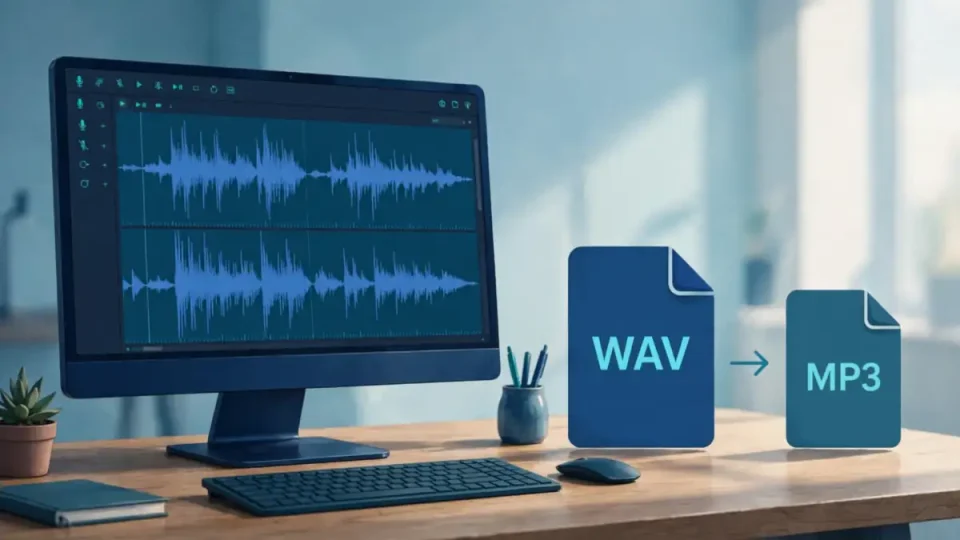
A WAV file sounds great and eats storage, so sooner or later every creator needs a smaller copy. Audacity turns that WAV into an MP3 in minutes, free, with no account and no upload.
This tutorial covers one file, then a whole folder, using only your own recordings or royalty-free tracks. It never touches ripping from streaming services, since those copies are not yours to take.
Summary
- Audacity 3.2 and later ships with the MP3 encoder built in, so no separate download is needed (Hollyland, 2026).
- Use 320 kbps for music, 192 kbps for a balance of size and quality, and 128 kbps for spoken word (Hollyland, 2026).
- A Macro converts a whole folder in one run, dropping finished MP3s into a macro-output folder (Hollyland, 2026).
- Fill in the metadata tags before you export, or players will show Unknown Artist.
- Keep the WAV master after converting, since MP3 can never grow back into WAV quality.
Before you start: 2 rules
Convert only files you own or may legally use, such as your own recordings and royalty-free downloads. Streams you rent are not files you own, and no tutorial here will show you how to rip one.
Work from the best copy you have, since a bad recording only sounds worse after compression (Hollyland, 2026). Save the original WAV first, because every export below throws data away for good.
6 steps to convert WAV to MP3 in Audacity
Each step below takes seconds, and the whole job fits in a coffee break. Menu names follow Audacity 3.2 and later, where the MP3 encoder ships built in (Hollyland, 2026).
- Check your Audacity version first, and update to 3.2 or later when the MP3 encoder is missing (Hollyland, 2026).
- Import the WAV file with File, then Import, then Audio, or drag the file into the window (Hollyland, 2026).
- Set the bitrate in the export dialog: 320 kbps for music, 192 kbps for most jobs, 128 kbps for speech (Hollyland, 2026).
- Export the file with File, then Export, then Export as MP3, and pick a name and folder (Hollyland, 2026).
- Fill in the metadata tags when the tag window opens: artist, title, album, track number, and year (Hollyland, 2026).
- Play the finished MP3 once, on the device your listeners will use, before you delete anything.
Saving and exporting are different jobs in Audacity: saving keeps an Audacity project, while exporting makes a playable file (Hollyland, 2026). New users mix them up most often, then wonder why no player opens their project.
Bitrate mode matters too: constant bitrate suits podcasts best, while variable bitrate saves space on quiet passages (Hollyland, 2026). Joint stereo is the safe default, since it shares data between channels without audible loss (Hollyland, 2026).
Project rate deserves one glance before export: 44,100 Hz fits music and podcasts, while 48,000 Hz fits video (Hollyland, 2026). Mismatched rates can shift timing or add artifacts, so match the rate to the source file (Hollyland, 2026).
Which bitrate should you pick?
Bitrate trades size for sound, and the right pick depends on who listens and where. Music with dense detail needs the top rate, while a solo voice survives the lowest.
| Use | Bitrate | Why |
|---|---|---|
| Music for release | 320 kbps | Best MP3 quality, artifacts nearly inaudible |
| Podcast with music | 192 kbps | Balanced size and polish |
| Spoken word only | 128 kbps | Small files, clear voices |
| Drafts and previews | 128 kbps | Fast to share, quality secondary |
Our format guide shows the same rule with file sizes: a 3-minute song takes about 7 MB as 320 kbps MP3. Going back the other way never helps: converting an MP3 to WAV makes a bigger file with the same sound.
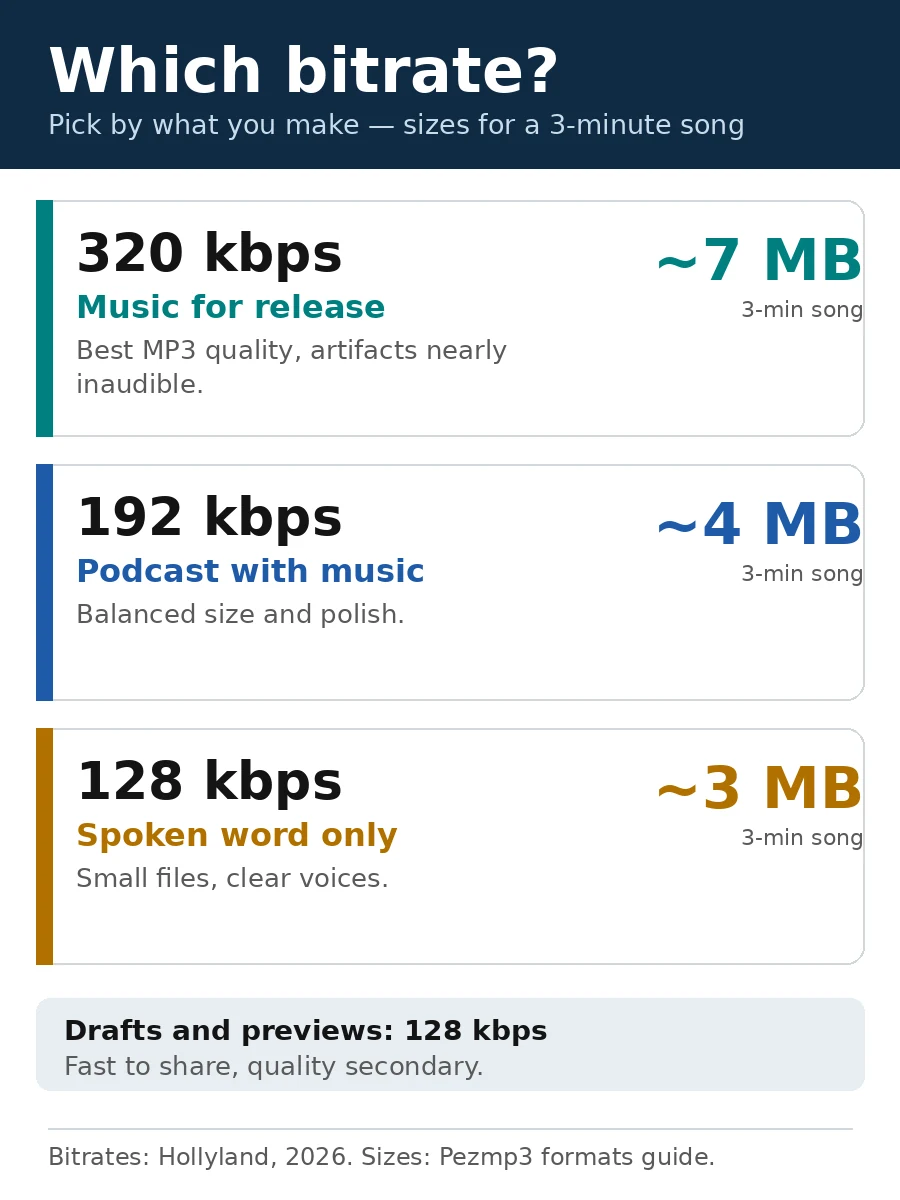
Three bitrates cover every job: music takes 320, podcasts with music take 192, and spoken word takes 128.
How to batch convert a folder with Macros
Macros run the same export on file after file, with no clicks in between (Hollyland, 2026). Build one once, and a season of episodes converts while you make coffee.
- Open Tools, then Macro Manager, and create a macro named Batch MP3 Convert (Hollyland, 2026).
- Insert the Export as MP3 command, then close the manager (Hollyland, 2026).
- Run Tools, then Apply Macro, then Files, and select every WAV file in the folder (Hollyland, 2026).
- Collect the finished MP3s from the macro-output folder beside the originals (Hollyland, 2026).
Batch runs never overwrite your originals, and the new folder keeps the results separate (Hollyland, 2026). Test the macro on two files first, then run the whole folder once the settings look right.
How to add metadata that players actually show
Players read ID3 tags, not filenames, so untagged MP3s show up as Unknown Artist (Hollyland, 2026). The tag editor opens right after you save, before the export finishes (Hollyland, 2026).
Fill in artist, title, album, track number, and year, then save the set as a template for the series (Hollyland, 2026). Weekly shows save the most time here, since the artist and album never change.
When Audacity is not the right tool: FFmpeg
FFmpeg works from the command line, with no window and no clicks, and it costs nothing (FFmpeg, 2026). One command converts a file at 320 kbps, which suits scripts and servers better than a GUI.
ffmpeg -i input.wav -b:a 320k output.mp3Download FFmpeg only from its official site or your system package manager, never from a random mirror (FFmpeg, 2026). Its open-source library also lets Audacity open formats like M4A and WMA (Audacity Manual, 2026).
What to play on the MP3s you make
Fresh MP3s need legal tracks, and the best sources cost nothing up front. Start with legal tracks worth converting: our pillar guide lists seven free sources with their licenses.
The Free Music Archive suits this job well, since every track carries its own Creative Commons license. Open the track page, read its license line, and keep a copy with the file.
Conclusion
Six steps stand between a WAV and a playable MP3, and the batch macro covers the rest. Keep the master, tag the copy, and convert only what you own.
If a file came from a stream, leave it alone and find a legal source instead. Your listeners hear the mix, not the converter, so spend the effort on the recording.
Frequently asked questions
Do I need to install LAME to export MP3 in Audacity?
No. Version 3.2 and later ships with the MP3 encoder built in (Hollyland, 2026). Older versions ask for the encoder separately, so updating is the faster fix (Hollyland, 2026).
Will converting WAV to MP3 hurt the sound?
Yes. MP3 throws data away to save space, and no converter can put it back (Hollyland, 2026). Use 320 kbps to keep the loss nearly inaudible, and keep the WAV master (Hollyland, 2026).
Can I turn an MP3 back into a WAV?
You can, but the sound stays the same while the file grows huge (Hollyland, 2026). Convert back only before a heavy edit, where WAV avoids extra losses during the work.
Where do batch-converted files go?
Into a macro-output folder beside the originals, which Audacity creates during the run (Hollyland, 2026). Originals stay untouched, so check the new folder before you move anything.
Is it legal to convert music I downloaded?
It depends on the license, not the file format. Your own recordings and royalty-free tracks are safe to convert, while ripped streams are not.
Methodology
Steps were verified against the Audacity guide and manual text opened or indexed on 26 November 2026. Bitrates follow the cited guide, and no streaming or ripping tool was tested for this article.
Menu names can shift between Audacity versions, so the version in use is named wherever it matters. This article gives practical compliance guidance, not legal advice, and license terms on each track still govern.
References
- How to Convert WAV to MP3 Using Audacity (Step-by-Step Guide)
- Download FFmpeg
- Audacity Tour Guide – Audacity Manual
- Free Legal Music for Creators: The Complete Guide 2026 — Pezmp3
- MP3 vs FLAC vs WAV: Which Audio Format Is Right for Creators? — Pezmp3
- Free Music Archive: How to Download CC0 and CC-BY Music — Pezmp3